Everytime, if we would like use system command as sudoer, we should input password. But I found a way which using system command without password after google.
2015/11/19
Install and Use exfat USB under Ubuntu

exFAT (Extended File Allocation Table) is a Microsoft file system optimized for flash drives. exFAT can be used where the NTFS file system is not a feasible solution (due to data structure overhead), or where the file size limit of the standard FAT32 file system is unacceptable.
exFAT has been adopted by the SD Card Association as the default file system for SDXC cards larger than 32 GB.
Native Linux support for exFAT is still limited. As of 2010, a working implementation under FUSE exists, which reached version 1.0 in 2013. So we need to install exfat-fuse and related packges in Ubuntu for using exFAT.
Install exfat package under Ubuntu
Update all repositories.
Installing the below 2 packages.
Use exFAT USB under Ubuntu
If Ubuntu doesn't auto-mount your exFAT formatted driver, you could mount exfat USB manually after installed the above 2 packages.
jose@jose-ubuntu:~$ sudo mount -t exfat /dev/sdxx /media/xxx
/media/xxx - means specific folder for exfat partition.
/dev/sdxx - means your exfat partition.
Jose’s Google+ profile
2015/09/01
Install And Configure PXE Server On Ubuntu 14.04
My PXE server is building in VirtualBox. The details are given below:
The detailed installation and configuration of PXE Server on Ubuntu by below steps.
- OS: Ubuntu 14.04 LTS server.
- VirtualBox Network Interface 1: Bridge mode; mapping to Ubuntu Eth0
- VirtualBox Network Interface 2: Internal mode, Set Name as "MAAS"; mapping to Ubuntu Eth1
- IP Address: 192.168.1.1
- DHCP: isc-dhcp-server (The detailed settings please refer to here)
- TFTP: xinetd (The detailed settings please refer to here)
The detailed installation and configuration of PXE Server on Ubuntu by below steps.
2015/08/20
Install and Setup DHCP Server on Ubuntu Linux
I had installed and setup DHCP Server on Ubuntu by below steps.
2015/08/19
Install and Setup TFTP Server on Ubuntu Linux
I had installed and setup TFTP Server on Ubuntu by below steps.
2015/08/17
Linux dd to create an specific size empty file 建立特定大小的空檔案
最近因為工作的關係,需要在Linux 下用 dd 建立特定大小的空檔案(specific size empty file)。
終於讓我試出用 dd 建立特定大小空檔案的方法。
終於讓我試出用 dd 建立特定大小空檔案的方法。
2014/12/03
RTC hwclock 和 date 系統時間
最近客戶遇到有關 hwclock 的問題,發現設備因為斷電時間過長,進入 Linux 系統後,Linux 的系統時間又回到 1970年1月1日了。
因為對 hwclock 不了解,所以就趁這個機會熟悉一下 Linux 內和 clock 有關的命令,包括:hwclock、date。
因為對 hwclock 不了解,所以就趁這個機會熟悉一下 Linux 內和 clock 有關的命令,包括:hwclock、date。
2011/12/20
2011/09/02
VirtualBox、Guest Additions與Ubuntu
Virtual Box是一個很好用的系統,我曾經寫過一篇《通達人驛站: 解決Virtual Box的常見錯誤》,不過這時的Virtual Box是V3.2.X。
Ubuntu是一個強調易用性和國際化的Linux,標準安裝完成後,一開機就可以直接使用,毋需安裝網卡、音效卡等硬體設備的驅動,也不用另外安裝瀏覽器、Office套裝程式、多媒體播放程式等常用軟體,以便能儘可能地為多人所用。
在Virtual Box昇級到v.4.1.2後,因為安裝Guest Additions 、以及主端(Host)/客端(Guest)分享檔案匣的方式,都比以前 V3.2.X 簡化不少。再加上我安裝的客端是Ubuntu 10.x,Ubuntu預設是不另外增加root的帳號,所以在安裝到新版的Virtual Box時,會遇到一些以前沒遇過的問題。
所以這篇文章預設的讀者,是像我這類對Linux不熟的使用者,所以文章的主題是在介紹設定主端Windows 7 、VirtualBox 、與客端 Ubuntu 的方法。
Ubuntu是一個強調易用性和國際化的Linux,標準安裝完成後,一開機就可以直接使用,毋需安裝網卡、音效卡等硬體設備的驅動,也不用另外安裝瀏覽器、Office套裝程式、多媒體播放程式等常用軟體,以便能儘可能地為多人所用。
在Virtual Box昇級到v.4.1.2後,因為安裝Guest Additions 、以及主端(Host)/客端(Guest)分享檔案匣的方式,都比以前 V3.2.X 簡化不少。再加上我安裝的客端是Ubuntu 10.x,Ubuntu預設是不另外增加root的帳號,所以在安裝到新版的Virtual Box時,會遇到一些以前沒遇過的問題。
所以這篇文章預設的讀者,是像我這類對Linux不熟的使用者,所以文章的主題是在介紹設定主端Windows 7 、VirtualBox 、與客端 Ubuntu 的方法。
2011/05/23
tftp使用Tips
tftp(Trivial File Transfer Protocol)是一個很好用的上傳/下載軟體,不論是在u-boot或是Linux內,都有相對應的版本。這篇文章就是寫自己常用的命令,以免以後忘記。
2010/07/27
好用的PuTTY多視窗切換外掛-PuTTYCM, PuTTY Connection Manager
好用的PuTTY多視窗切換外掛-PuTTYCM, PuTTY Connection Manager
這篇文章介紹了 PuTTY 多視窗切換外掛-PuTTY Connection Manager,包括:PuTTY Connection Manager的優、缺點。
如果你像我一樣得常在 Windows 下使用 PuTTY、又得在多個 PuTTY 視窗、又或者要在其他應用程式的視窗中來回切換,那我建議你看完這篇文章,因為文章中介紹的軟體將有效提昇你使用PuTTY的效率。

這篇文章介紹了 PuTTY 多視窗切換外掛-PuTTY Connection Manager,包括:PuTTY Connection Manager的優、缺點。
如果你像我一樣得常在 Windows 下使用 PuTTY、又得在多個 PuTTY 視窗、又或者要在其他應用程式的視窗中來回切換,那我建議你看完這篇文章,因為文章中介紹的軟體將有效提昇你使用PuTTY的效率。
2009/11/20
2009/11/19
安裝 perl module Term::ReadKey
因為在perl script內使用了ReadMode 'cbreak' 和ReadMode 'normal'的指令,所以需要在Perl內安裝Term::ReadKey這個Module。
安裝步驟
- 使用者切換成root
設定perl的選項。除非要改Perl的設定值,不然都可以在一開始執行設定時就選[auto]。
perl -MCPAN -e shell
安裝Term::ReadKey
cpan> install Term::ReadKey
當畫面最後出現
Running make install
就表示安裝已經完成。
2009/11/18
Linux內常用但不易記的指令
為了避免自己忘記,我在這裏記載了一些在Linux內常用的指令。
系統設定
目錄/檔案管理
其他
- cat /etc/redhat-release 印出Linux版本
vi /proc/version:看系統版本
top :看目前系統資源的使用情況
export PATH=$PWD:$PATH :將目前的目錄設在PATH內
set|more :顯示系統內的設定值
source .bashrc.private :再將.bashrc.private重新執行一次
ifconfig :相當於windows的ipconfig
ps -aux:查看系統中正在執行的程式之程序資料
ps -ef | grep XXC 列出XX程式正在執行的狀況
-a:其它使用者執行的程式一併顯示出來
-c:只顯示執行程式的名字
-e:顯示執行程式的環境變數
-f:顯示執行的路行群
-i:顯示各程式的詳細執行情況
-l:長格式顯示
-m:顯示記憶體分配情形
-r:顯示前景執行的程式
-s:顯示各程式的訊號名稱
-u:顯示使用者名稱和起始時間
-v:顯示虛擬記憶體使用情況
-w:若訊息一列無法容納,則換列顯示
-x:顯示所有程序
kill 刪除某個運作中的程式
設定系統IP,修改:
\etc\hosts
\etc\sysconfig\network
- cp :複製檔案
-r :複製目錄
scp :跨網路複製檔案
pwd:列出目前工作目錄的完整路徑
ls -la:列出這個目錄內檔案的完整資訊
rm -rf 目錄/檔案:強制刪除這個檔案或目錄(類似DOS下的Deltree)
mv -f 目錄/檔案:強制移動/更改檔案或目錄
find 字串:印出這個目錄下所有符合字串的目錄和檔案
clear(ctrl+l): 清除螢幕,相當於Dos下的cls
- vncserver :開啟VNC的連線
vncserver -kill :1 :關閉VNC的連線
ldd 判斷某個可執行的 binary 檔案含有什麼動態函式庫,以及該函式庫是否存在
2009/10/20
解決Linux版Firefox中文網頁的掉字情況
雖然我安裝的是中文版的 RedHat Enterprise,但一遇到 big5 編碼的中文網頁,就會出現掉字的情況。
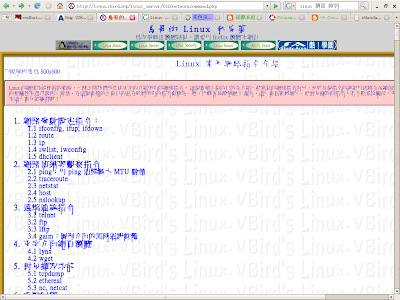
看了參考資料後,做了以下修改,就能有效的解決這個問題:
看了參考資料後,做了以下修改,就能有效的解決這個問題:
- 利用 vi 開啟/etc/font/conf.d/65-nonlatin.conf
在/etc/font/conf.d/65-nonlatin.conf內的 sans 、 serif 底下的 prefer 標籤內的第一行加上
<family>AR PL ShanHeiSun Uni</family>
,表示firefox預設的Sans , Serif字型為AR PL ShanHeiSun Uni字型,不過如果你想用別的字型,代換成別的字型也可以。接著執行:
$ sudo fc-cache -v
重開 Firefox 後就見效了。- 開啟 Firefox
開啟 編輯 > 偏好設定 > 內容 > 進階
取消「優先使用網頁指定的字型」
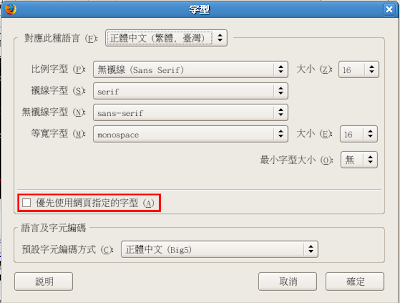
選<確定>離開編輯。
2008/08/11
在Red Hat 5.0內裝Pidgin
因為想在RHEL5(Red Hat Enterprise Linux 5)底下安裝pidgin,就上網找了如何安裝pidgin的資料,並直接嘗試安裝,成功後就寫在這裏以避免自己忘記了。
- 使用su切換成root的權限。
從pidgin的官網複製pidgin.repo至/etc/yum.repos.d/下
在/etc/yum.repos.d/下使用"yum install pidgin"指令安裝Pidgin:
Loading "installonlyn" plugin
Loading "rhnplugin" plugin
Setting up Install Process
Setting up repositories
rhel-i386-server-5 100% |=========================| 1.4 kB 00:00
pidgin 100% |=========================| 951 B 00:00
Reading repository metadata in from local files
primary.xml.gz 100% |=========================| 14 kB 00:00
################################################## 82/82
Parsing package install arguments
Resolving Dependencies
--> Populating transaction set with selected packages. Please wait.
---> Downloading header for pidgin to pack into transaction set.
pidgin-2.3.1-0.el5.i386.r 100% |=========================| 64 kB 00:00
---> Package pidgin.i386 0:2.3.1-0.el5 set to be updated
--> Running transaction check
--> Processing Dependency: libpurple = 2.3.1 for package: pidgin
--> Processing Dependency: perl(Purple) for package: pidgin
--> Processing Dependency: libpurple.so.0 for package: pidgin
--> Restarting Dependency Resolution with new changes.
--> Populating transaction set with selected packages. Please wait.
---> Downloading header for libpurple to pack into transaction set.
libpurple-2.3.1-0.el5.i38 100% |=========================| 39 kB 00:01
---> Package libpurple.i386 0:2.3.1-0.el5 set to be updated
--> Running transaction check
--> Processing Dependency: libsilc-1.0.so.2 for package: libpurple
--> Processing Dependency: cyrus-sasl-md5 for package: libpurple
--> Processing Dependency: libsilcclient-1.0.so.1 for package: libpurple
--> Restarting Dependency Resolution with new changes.
--> Populating transaction set with selected packages. Please wait.
---> Downloading header for cyrus-sasl-md5 to pack into transaction set.
cyrus-sasl-md5-2.1.22-4.i 100% |=========================| 15 kB 00:00
---> Package cyrus-sasl-md5.i386 0:2.1.22-4 set to be updated
--> Running transaction check
--> Processing Dependency: libsilc-1.0.so.2 for package: libpurple
--> Processing Dependency: libsilcclient-1.0.so.1 for package: libpurple
--> Finished Dependency Resolution
Error: Missing Dependency: libsilc-1.0.so.2 is needed by package libpurple
Error: Missing Dependency: libsilcclient-1.0.so.1 is needed by package libpurple
從訊息中找出欠缺的套件Loading "rhnplugin" plugin
Setting up Install Process
Setting up repositories
rhel-i386-server-5 100% |=========================| 1.4 kB 00:00
pidgin 100% |=========================| 951 B 00:00
Reading repository metadata in from local files
primary.xml.gz 100% |=========================| 14 kB 00:00
################################################## 82/82
Parsing package install arguments
Resolving Dependencies
--> Populating transaction set with selected packages. Please wait.
---> Downloading header for pidgin to pack into transaction set.
pidgin-2.3.1-0.el5.i386.r 100% |=========================| 64 kB 00:00
---> Package pidgin.i386 0:2.3.1-0.el5 set to be updated
--> Running transaction check
--> Processing Dependency: libpurple = 2.3.1 for package: pidgin
--> Processing Dependency: perl(Purple) for package: pidgin
--> Processing Dependency: libpurple.so.0 for package: pidgin
--> Restarting Dependency Resolution with new changes.
--> Populating transaction set with selected packages. Please wait.
---> Downloading header for libpurple to pack into transaction set.
libpurple-2.3.1-0.el5.i38 100% |=========================| 39 kB 00:01
---> Package libpurple.i386 0:2.3.1-0.el5 set to be updated
--> Running transaction check
--> Processing Dependency: libsilc-1.0.so.2 for package: libpurple
--> Processing Dependency: cyrus-sasl-md5 for package: libpurple
--> Processing Dependency: libsilcclient-1.0.so.1 for package: libpurple
--> Restarting Dependency Resolution with new changes.
--> Populating transaction set with selected packages. Please wait.
---> Downloading header for cyrus-sasl-md5 to pack into transaction set.
cyrus-sasl-md5-2.1.22-4.i 100% |=========================| 15 kB 00:00
---> Package cyrus-sasl-md5.i386 0:2.1.22-4 set to be updated
--> Running transaction check
--> Processing Dependency: libsilc-1.0.so.2 for package: libpurple
--> Processing Dependency: libsilcclient-1.0.so.1 for package: libpurple
--> Finished Dependency Resolution
Error: Missing Dependency: libsilc-1.0.so.2 is needed by package libpurple
Error: Missing Dependency: libsilcclient-1.0.so.1 is needed by package libpurple
Error: Missing Dependency: libsilc-1.0.so.2 is needed by package libpurple
Error: Missing Dependency: libsilcclient-1.0.so.1 is needed by package libpurple
進入義守大學檔案伺服器,找到符合Linux版本的套件Error: Missing Dependency: libsilcclient-1.0.so.1 is needed by package libpurple
libsilc-1.0.so.2位置:/pub/Linux/Mandrake/official/2007.1/i586/media/main/release/libsilcclient-1.0.so.1
libsilcclient-1.0.so.1位置:/pub/Linux/CentOS/5.0/os/i386/CentOS/libsilc-1.0.so.2
安裝套件
rpm -ivh libsilcclient-1.0_1-1.0.2-1mdv2007.1.i586.rpm
rpm -ivh --replacefiles libsilc-1.0.2-2.fc6.i386.rpm
在/etc/yum.repos.d/下使用"yum install pidgin"指令安裝Pidgin,就出現:rpm -ivh --replacefiles libsilc-1.0.2-2.fc6.i386.rpm
Loading "installonlyn" plugin
Loading "rhnplugin" plugin
Setting up Install Process
Setting up repositories
rhel-i386-server-5 100% |=========================| 1.4 kB 00:00
Reading repository metadata in from local files
Parsing package install arguments
Resolving Dependencies
--> Populating transaction set with selected packages. Please wait.
---> Package pidgin.i386 0:2.3.1-0.el5 set to be updated
--> Running transaction check
--> Processing Dependency: libpurple = 2.3.1 for package: pidgin
--> Processing Dependency: perl(Purple) for package: pidgin
--> Processing Dependency: libpurple.so.0 for package: pidgin
--> Restarting Dependency Resolution with new changes.
--> Populating transaction set with selected packages. Please wait.
---> Package libpurple.i386 0:2.3.1-0.el5 set to be updated
--> Running transaction check
--> Processing Dependency: cyrus-sasl-md5 for package: libpurple
--> Restarting Dependency Resolution with new changes.
--> Populating transaction set with selected packages. Please wait.
---> Package cyrus-sasl-md5.i386 0:2.1.22-4 set to be updated
--> Running transaction check
Dependencies Resolved
=============================================================================
Package Arch Version Repository Size
=============================================================================
Installing:
pidgin i386 2.3.1-0.el5 pidgin 1.2 M
Installing for dependencies:
cyrus-sasl-md5 i386 2.1.22-4 rhel-i386-server-5 45 k
libpurple i386 2.3.1-0.el5 pidgin 7.2 M
Transaction Summary
=============================================================================
Install 3 Package(s)
Update 0 Package(s)
Remove 0 Package(s)
Total download size: 8.4 M
Is this ok [y/N]: y
Downloading Packages:
(1/3): libpurple-2.3.1-0. 100% |=========================| 7.2 MB 00:20
(2/3): pidgin-2.3.1-0.el5 100% |=========================| 1.2 MB 00:08
(3/3): cyrus-sasl-md5-2.1 100% |=========================| 45 kB 00:00
Running Transaction Test
Finished Transaction Test
Transaction Test Succeeded
Running Transaction
Installing: cyrus-sasl-md5 ######################### [1/3]
Installing: libpurple ######################### [2/3]
Installing: pidgin ######################### [3/3]
Installed: pidgin.i386 0:2.3.1-0.el5
Dependency Installed: cyrus-sasl-md5.i386 0:2.1.22-4 libpurple.i386 0:2.3.1-0.el5
Complete!
安裝完後會在左上角的 Application > Internet下出現pidgin的圖示Loading "rhnplugin" plugin
Setting up Install Process
Setting up repositories
rhel-i386-server-5 100% |=========================| 1.4 kB 00:00
Reading repository metadata in from local files
Parsing package install arguments
Resolving Dependencies
--> Populating transaction set with selected packages. Please wait.
---> Package pidgin.i386 0:2.3.1-0.el5 set to be updated
--> Running transaction check
--> Processing Dependency: libpurple = 2.3.1 for package: pidgin
--> Processing Dependency: perl(Purple) for package: pidgin
--> Processing Dependency: libpurple.so.0 for package: pidgin
--> Restarting Dependency Resolution with new changes.
--> Populating transaction set with selected packages. Please wait.
---> Package libpurple.i386 0:2.3.1-0.el5 set to be updated
--> Running transaction check
--> Processing Dependency: cyrus-sasl-md5 for package: libpurple
--> Restarting Dependency Resolution with new changes.
--> Populating transaction set with selected packages. Please wait.
---> Package cyrus-sasl-md5.i386 0:2.1.22-4 set to be updated
--> Running transaction check
Dependencies Resolved
=============================================================================
Package Arch Version Repository Size
=============================================================================
Installing:
pidgin i386 2.3.1-0.el5 pidgin 1.2 M
Installing for dependencies:
cyrus-sasl-md5 i386 2.1.22-4 rhel-i386-server-5 45 k
libpurple i386 2.3.1-0.el5 pidgin 7.2 M
Transaction Summary
=============================================================================
Install 3 Package(s)
Update 0 Package(s)
Remove 0 Package(s)
Total download size: 8.4 M
Is this ok [y/N]: y
Downloading Packages:
(1/3): libpurple-2.3.1-0. 100% |=========================| 7.2 MB 00:20
(2/3): pidgin-2.3.1-0.el5 100% |=========================| 1.2 MB 00:08
(3/3): cyrus-sasl-md5-2.1 100% |=========================| 45 kB 00:00
Running Transaction Test
Finished Transaction Test
Transaction Test Succeeded
Running Transaction
Installing: cyrus-sasl-md5 ######################### [1/3]
Installing: libpurple ######################### [2/3]
Installing: pidgin ######################### [3/3]
Installed: pidgin.i386 0:2.3.1-0.el5
Dependency Installed: cyrus-sasl-md5.i386 0:2.1.22-4 libpurple.i386 0:2.3.1-0.el5
Complete!
訂閱:
文章 (Atom)